SIM Rules
SIM Rules
Rules define events that - when the event condition is fulfilled - automatically trigger one or many Actions. The event conditions in SIM Rules are related to SIM Cards.
Search for a SIM Rule
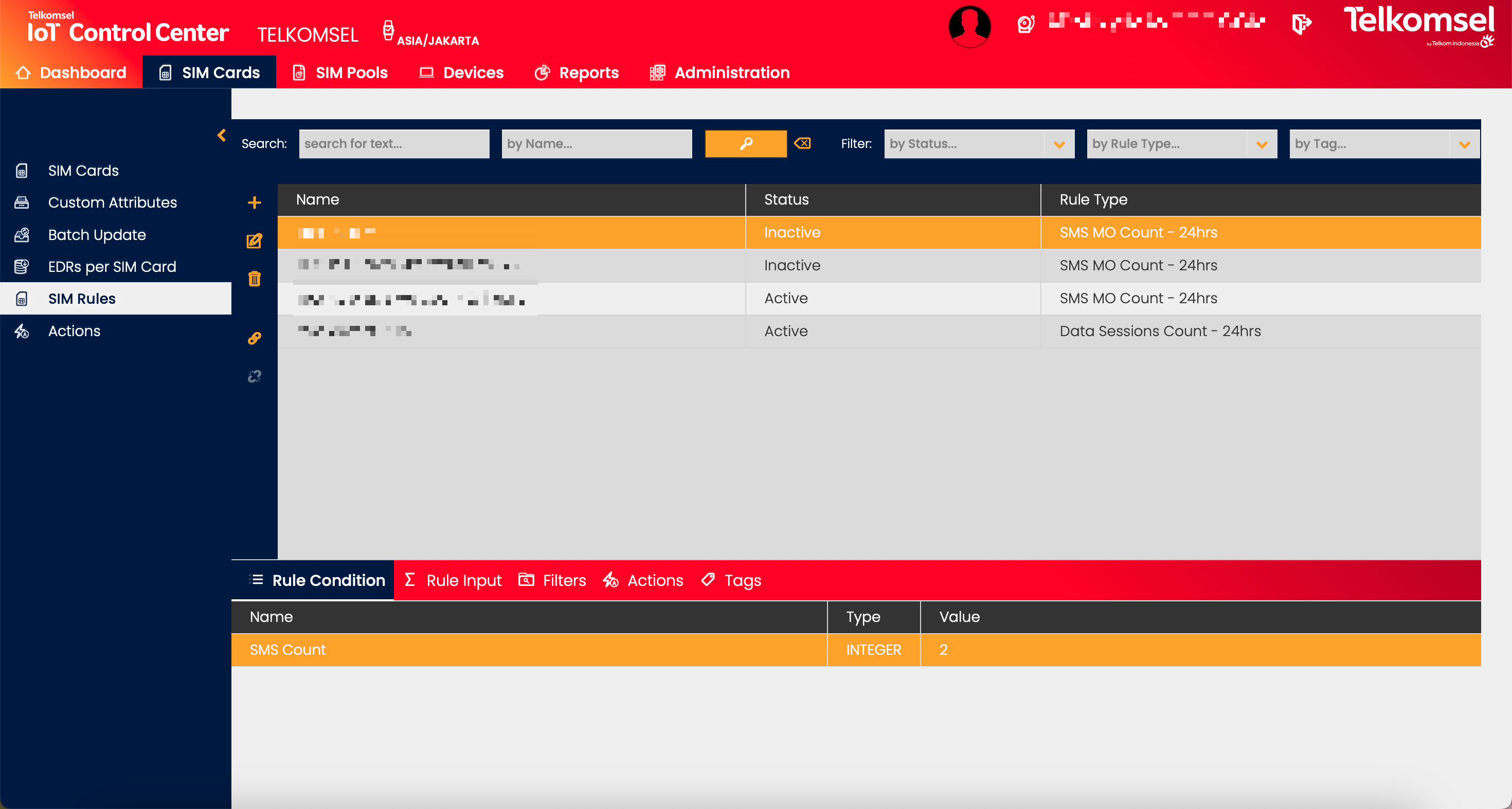
The search option of the SIM Rules module allows Users to retrieve a list of SIM Rules by entering text into the Search field. Additional specific search fields are available:
- Name
Search results may be filtered with the criteria given in the Search bar.
Filters:
- Status
- Rule Type
- Scope
- Tag
The defined search criteria can be removed by clicking on the Clear search  icon.
icon.

Create a SIM Rule
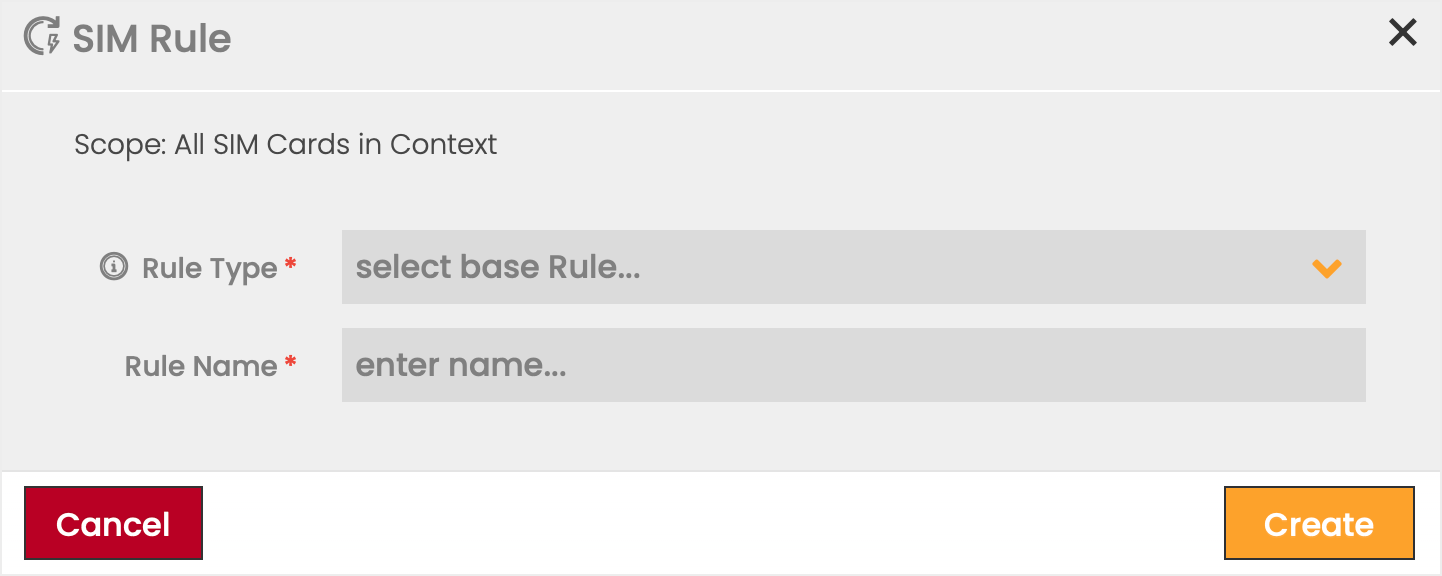
To create a SIM Rule:
- Click on the Add
 icon.
icon. - Select a Rule Type from the available options in the dropdown list.
Note: The dialog box adapts to the selected Rule Type. - Define the information fields for the new Rule.
- Enter a unique name for the SIM Rule.
- Click Create to save the Rule.
Remark: All SIM Rules are created with Scope All SIM Cards in Context. The new attribute 'Scope' introduced replaces the former term 'Global' for Rules as it was confusing and misleading. The mapping of the old to new terms is as follows: | ||
New Term | Old Term | Remark |
|---|---|---|
Scope value: 'All SIM Cards in Context' | Global Rule | Depending on the context of the User it describes the following meaning:
|
*1: The number of SIM Cards validated for the Rule can be further limited dynamically by specifying a Rule Filter (see below).
Edit or Delete SIM Rules
The settings of any SIM Rule can be edited while in the INACTIVE status.
- Click the Edit
 icon to modify the settings seen in the SIM Rule creation. Once the SIM Rule is activated, the data displayed in the edit dialog becomes read-only.
 - Click the Delete
 icon to delete a SIM Rule.
Update SIM Rule Status
SIM Rules exist as ACTIVE, and INACTIVE in the Enterprise Portal. Initially, all SIM Rules are created in INACTIVE status, however, only activated SIM Rules will be executed.
- Click the Activate
 icon to change the status from INACTIVE to ACTIVE.
 - Click the Deactivate
 icon to change the status from ACTIVE to INACTIVE.
SIM Rule Types
The following table explains the scope of each SIM Rule Type.
Rule Type | Explanation | Rule Type | Explanation |
|---|---|---|---|
Data Session Started | The device has successfully started a data connectivity session with a cellular network. | SIM Data Allowance in Home Zone | SIM Card has nearly or completely consumed the included data during the current Billing Cycle. |
Data Session Stopped | The data connectivity session between the device and the cellular network has ended. | SIM IMEI changed | IMEI of a Device with a CMP-managed SIM assigned has changed. |
Data Sessions Count - 24hrs | User-defined parameter for the total number of data sessions within 24 hours. | SIM Location Change | Cell ID of the SIM Card changed during or across data sessions. |
Data Usage - 24hrs | Data usage of the SIM within the current 24 hours exceeds the customer set limit. | SIM MSISDN Changed | MSISDN associated with the SIM has changed. |
Data Usage - Billing Cycle | Data usage of the SIM within the Billing Cycle has exceeded the user-set limit. | SIM Price Plan Changed | Price Plan associated with the SIM has changed. |
Data Usage in Country - Billing Cycle | Data usage of the SIM in a Country has exceeded the user-set limit within the Billing Cycle. | SIM Price Plan Expiration | Prepaid Price Plan of a SIM has expired, and either data or time limit has been reached. |
Data Usage in Zone - Billing Cycle | Data usage of the SIM in a Location Zone has exceeded the user-set limit within the Billing Cycle. | SMS Count - 24 hrs | SMS usage of the SIM within the current 24 hours has exceeded the customer set limit. |
Data blocked due to Security Profile violation | Data services of the SIM are blocked due to a Security Profile violation. | SMS Count - Billing Cycle | SMS usage of the SIM within the Billing Cycle has exceeded the user-set limit. |
No Data Sessions - 24hrs | No data connectivity session has been established with a cellular network within the last 24 hr period. | SMS Count in Country - Billing Cycle | SMS usage of the SIM in a Country within the Billing Cycle has exceeded the user-set limit. |
No SMS Sessions - 24hrs | No SMS session has been established within the last 24 hr period. | SMS Count in Zone - Billing Cycle | SMS usage of the SIM in the Location Zone within the Billing Cycle has exceeded the user-set limit. |
No Voice Sessions - 24 hrs | No Voice session has been established within the last 24 hr period. | SMS blocked due to Security Profile violation | SMS services of the SIM are blocked due to a Security Profile violation. |
No Voice Sessions - Billing Cycle | No Voice session has been established within the last Billing Cycle. | Voice Duration - 24 hrs | Voice usage of the SIM within the current 24 hours exceeds the customer set limit. |
Not Connected - 24hrs | SIM card has not established a connection to a mobile network within 24 hours. | Voice Duration - Billing Cycle | Voice usage of the SIM within the Billing Cycle has exceeded the user-set limit. |
Not Connected - Billing Cycle | SIM card has not established a connection to a mobile network within the past Billing Cycle | Voice Duration in Country - Billing Cycle | Voice usage of the SIM in a Country has exceeded the user-set limit within the Billing Cycle. |
SIM Billing Status Changed | Billing Status of the SIM has changed. Source- and Target Status are user-defined. | Voice Duration in Zone - Billing Cycle | Voice usage of the SIM in a Location Zone has exceeded the user-set limit within the Billing Cycle. |
SIM Custom Attribute Changed | Value of a particular Custom Field associated with the SIM has changed. | Voice blocked due to Security Profile violation | Voice services of the SIM are blocked due to a Security Profile violation. |
Note:
- All SMS Count Rules (Count - 24 hrs, Count - Billing Cycle, Count in Country - Billing Cycle, Count in Zone - Billing Cycle) are available either for MO or MT SMS. The Rules can be configured in the same way for both types of SMS.
- All Voice Duration Rules (Duration - 24 hrs, Duration Billing Cycle, Duration in Country - Billing Cycle, Duration in Zone - Billing Cycle) are available either for MO or MT Voice. The Rules can be configured in the same way for both types of Voice.
- Billing Cycle and 24 hours monitoring periods follow the specific CSP Time Zone, which may differ from UTC.
Remarks regarding Voice Related Automation Rules
Base unit for Voice related threshold triggers is seconds. All Voice related Usage Counters and threshold values are given in minutes and seconds (mm:ss).
For Voice Automation Rules only the existing Zone Model is used.
Offline CDRs might be significantly delayed (more than 24 hours), therefore Voice Duration Rules with a rule period of 24 hours are only supported in the Online case.
Online/Offline rule actions that disable service on Ro/Gy will not be available for Offline rules.
Notification Types
The following table explains the different types of Notifications.
Notification | Components | Amount of expected delay |
|---|---|---|
Near Real-Time | OUC-A | Millisecond - seconds delays |
Process-Based | OUC-B, ESB | Minutes - hours delay |
Report Based (Next schedule) | DAR | 1 - 2 days delay |
For example:
Notification for Not Connected - Billing Cycle is an offline event, the expected delivery time is 1-10 days, depending on how the system is configured and how long the system waits to collect all data until the trigger detects the event.
SIM Rules - Extended Details
For SIM Rules, it is possible to gain a quick view of the Rule's details through the Extended Details menu.
Rule Conditions
The Rule Conditions option displays all information that defines the conditions of the selected Rule.
Note:
For conditions based on SIM Card properties (Session Status, MSISDN Change, etc.), the Rule Condition panel will not be populated with any data.

Column | Description |
|---|---|
Name | Describes the focus of the condition. |
Type | Set as INTEGER for conditions that require a Value input. |
Value | A user-defined integer that sets the measure of the condition. |
Rule Input
The Rule Input option displays the characteristics of the Rule that, when combined with the condition, will trigger any related Action(s).

Column | Description |
|---|---|
Type | A quick reference to the scope of the Rule. |
Name | Category for the focus of the Value. |
Value | The parameter in which the Rule condition operates. |
Filters
Note:
The FIlters tab is only available for SIM Rules of scope All SIM Cards in scope.
Filters are used to apply a SIM Rule to a subset of the SIM Cards in the selected Context. Rule Filters are managed in the Filters section.

The following table lists all the available Filter Types and describes which Filter Types are available on Root and/or Account level.
Filter Type | Applies to: | Applicability Level |
|---|---|---|
Account | Specific Account | Root |
Sub-Account | Specific Sub-Account | Account |
Account Tag | Accounts with a specific Tag | Account |
Subscriber Tag | SIM Cards with a specific Tag | Root & Account |
Account Status | Accounts with a specific Status | Root |
Sub-Account Status | Sub-Accounts with a specific Status | Account |
Subscriber Status | SIM Cards with a specific Billing Status | Account |
IMSI Active Price Plan | SIMs operating with any active Price Plan Includes both Base Price Plans, as well as cases where a Temporary Price Plan change has occurred. | Account |
IMSI Active Price Plan Type | SIMs operating with an active Price Plan of a specific type Includes both Base Price Plans, as well as cases where a Temporary Price Plan change has occurred. | Account |
Radio Access Type | SIMs that have used a specific Radio Access Type | Account |
Custom Attribute | SIMs with specific Custom Attributes | Account |
Zone | SIMs with usage in a specific Zone | Account |
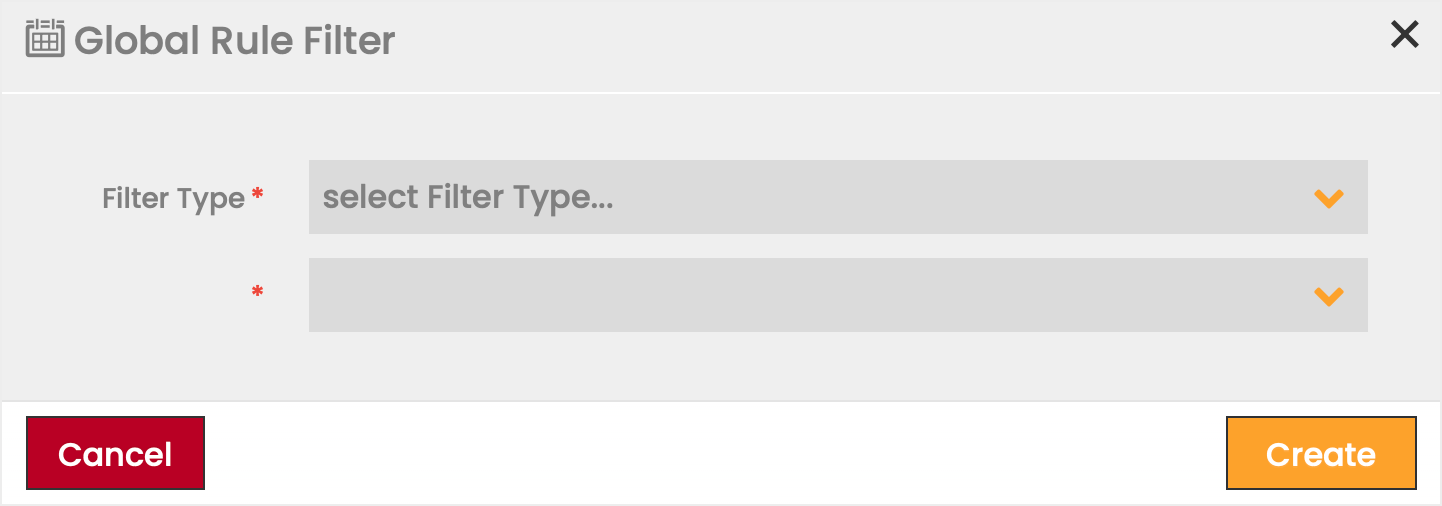
To apply a Filter for a SIM Rule:
- Click on the Add icon.
- Select a Filter Type from the available options in the dropdown list.
Note: The dialog box adapts to the selected Filter Type. - Set the value of the Filter.
- Click Create to apply your selection.
Actions
The Actions panel lists all the Actions that have been assigned to a Rule and allows to add and remove Actions to the selected Rule.

Column | Description |
|---|---|
Sequence | Defines the order in which the Action will be listed. |
Action | Displays the Action that is performed when the Rule is triggered. |
Action Type | Displays the Action Type selected at Action creation of each assigned Action. For the list of available options see the section Action Types below. |
Action Repetition Type | Defines how often can the Action be performed. The Action Repetition Type is defined by the Action Type and cannot be changed by the User.
|
Execution Type | Defined only for Action Types Change SIM Billing Status (if the target status is Suspended) and Change SIM Price Plan.
Note that the Execution Type field is only populated in case the Temporary (BC-Only) option has been selected at Action assignment. |
Action Schedule | Schedule of the Action execution.
|
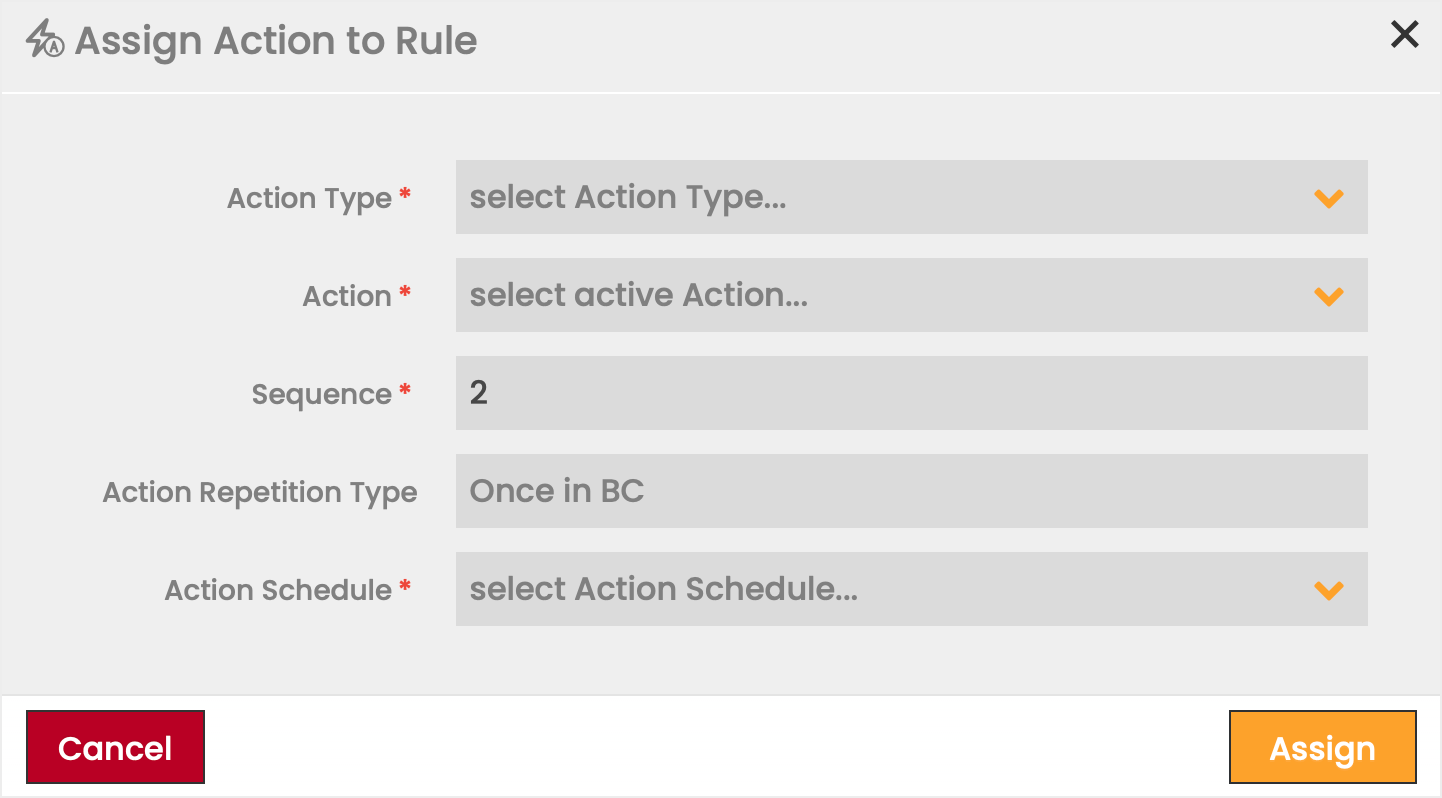
To assign an Action to a Rule:
- Select a Rule from the SIM Rules grid.
- Click on the Add icon in the Actions section.
- Define the information fields for the assignment.
Fields marked by a red asterisk are mandatory. - Click Assign to apply your selection.
Field | Description |
|---|---|
Action Type | Defines which options are available in the Action dropdown list (i.e. only Actions of the selected Action Type will be available). |
Action | One of the activated Actions related to the Action Type. |
Sequence | The order in which the Actions are listed for viewing (0-999999999). Note: The CMP initiates an Action when the corresponding Rule is triggered, regardless of Sequence order. |
Action Repetition Type | Defines how often can the Action be performed. The Action Repetition Type is defined by the Action Type and cannot be changed by the User.
|
*Execution Type | Execution Type is only available if Action Type Change SIM Billing Status or Change SIM Price Plan is selected. Note: Temporary (BC-ONLY) changes are only applicable if the target Billing Status is Suspended or the target Price Plan is Postpaid. Otherwise, the Execution Type option is hidden. |
Action Schedule | Schedule of the Action execution.
|